2026-05-14
How to sign a PDF document with an electronic signature?
Electronic documents should be in PDF format. This ensures they always look the same across different devices and systems. They are also easy to sign electronically. Check how to do it in a few simple steps!
Sign and send back a PDF document
You receive a PDF document by email that you need to sign immediately and send back. What do you do if you don’t have an electronic signature? You print the document, sign it by hand, scan it into a PDF, and send it via email. This is time-consuming and not very professional.
With an electronic signature, you sign the document and immediately send it back. Quickly and professionally. You save time, eliminate printing, and reduce paper consumption. These capabilities are provided by an e-signature that works with Adobe applications.
You can also apply an electronic signature using the web-based application CertumSign, which additionally allows you to send documents for signing to people both inside and outside your organization.
What electronic signature for PDF?
Automatic identification in Adobe software is enabled by the mobile qualified electronic signature SimplySign. By using it, you don’t have to waste time on simple tasks. No more manually signing documents and sending them by post.
How to electronically sign PDFs with SimplySign?
Preparation for using an electronic signature for PDF:
- Buy or renew your electronic signature.
- Decide whether you want to sign PDF documents on a smartphone or on a computer.
- Download and install the SimplySign app. It is available on Google Play (Android), App Store (iOS), or Huawei AppGallery (Harmony OS).
- Download and install the SimplySign Desktop application and ProCertum SmartSign.
- Install a free PDF viewer, e.g. Adobe Acrobat Reader DC.
- Set a PIN to confirm your electronic signature for PDF documents.
How to use SimplySign to sign PDF files?
You can use the SimplySign mobile signature to electronically sign PDF documents in four ways:
- Signing on a computer using proCertum SmartSign
- Signing on a mobile device
- Signing in the browser-based CertumSign application
- Signing in the Adobe Reader application
1. How to sign a PDF document with a qualified electronic signature on a computer?
To apply a qualified signature to a PDF file using Certum software:
- Connect to the SimplySign Desktop application and launch proCertum SmartSign on your computer.
- Go to the Signing (1) tab, where you can add the PDF file for signing (2).
- Select the file and click Sign (3).
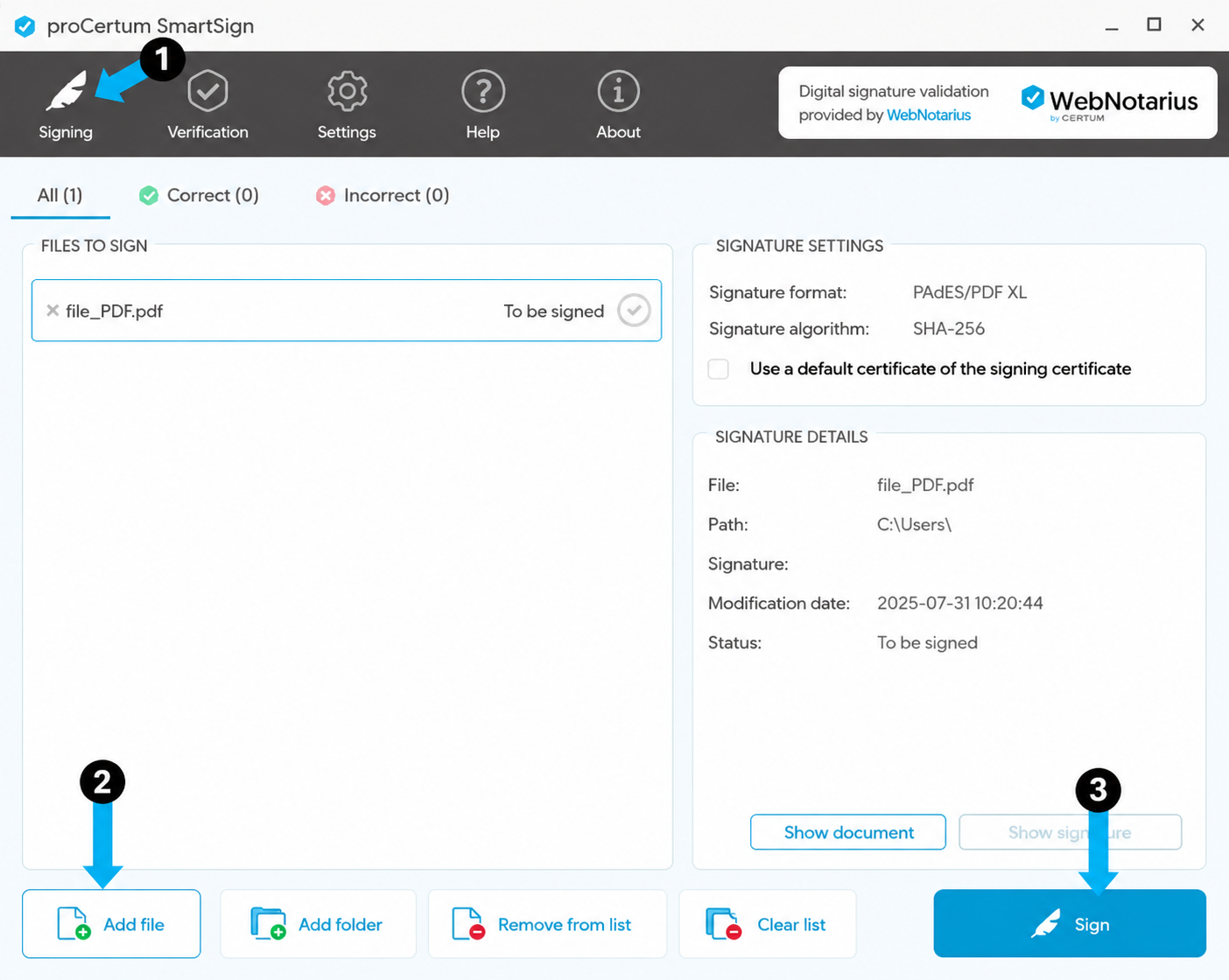
Configuring a digital signature in PAdES format
After launching the proCertum SmartSign application:
- Go to Settings (1) and open the Signature (2) tab.
- Navigate to Additional signature options (3).
- Uncheck Create a special PDF signature (PAdES) when a PDF document is being signed (4).
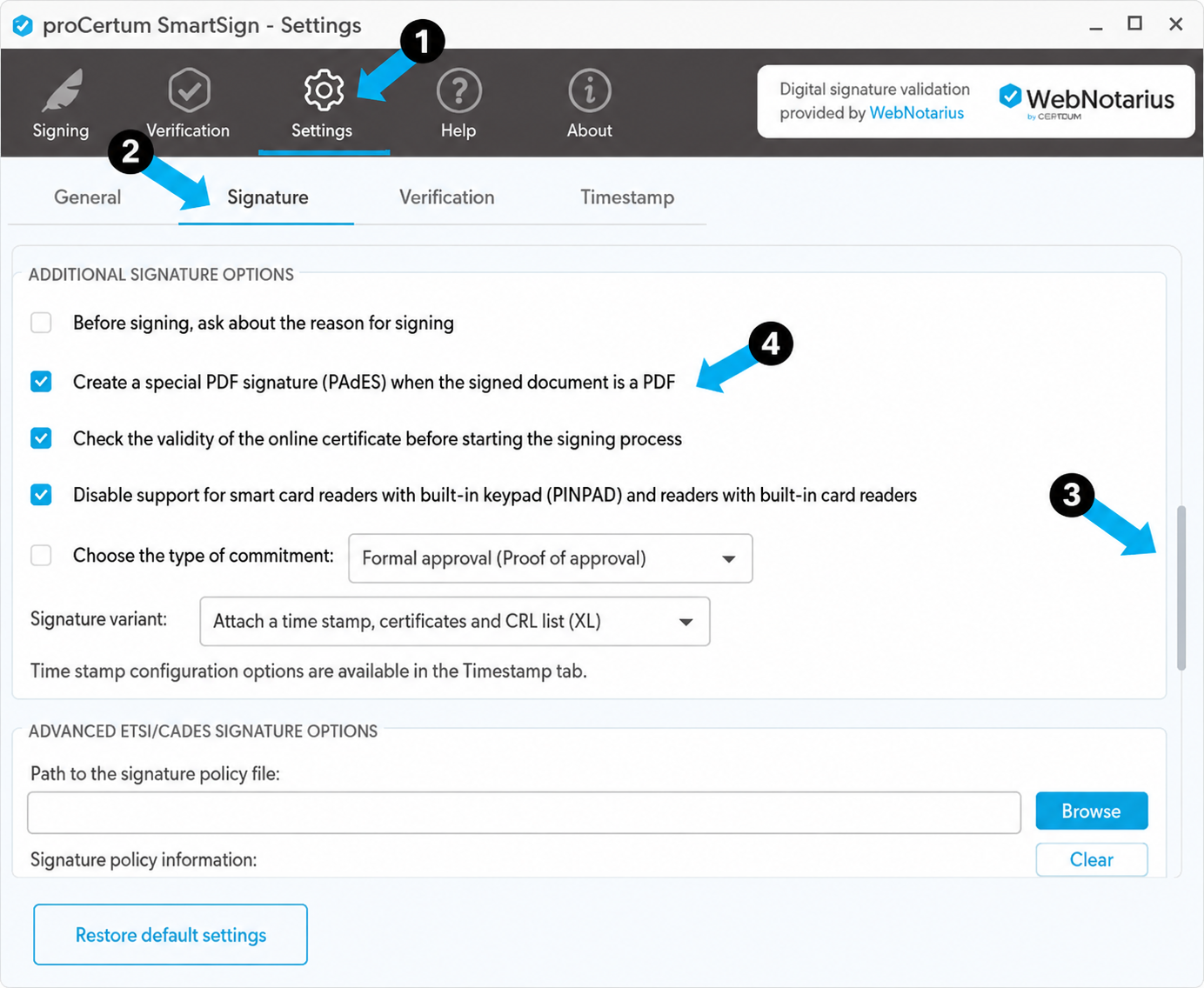
When electronically signing, you can choose the place and the size of the signature on the PDF document. Remember that signing a PDF with a qualified signature requires entering your PIN.
SimplySign you can use in the Windows system and macOS.
2. How to place an electronic PDF signature on a smartphone or tablet?
PDF files you will also sign mobile in any place and time. The only thing you need is the SimplySign mobile application. Download it and install it before you move on to following the steps of the instruction.
To sign a PDF document on a mobile device:
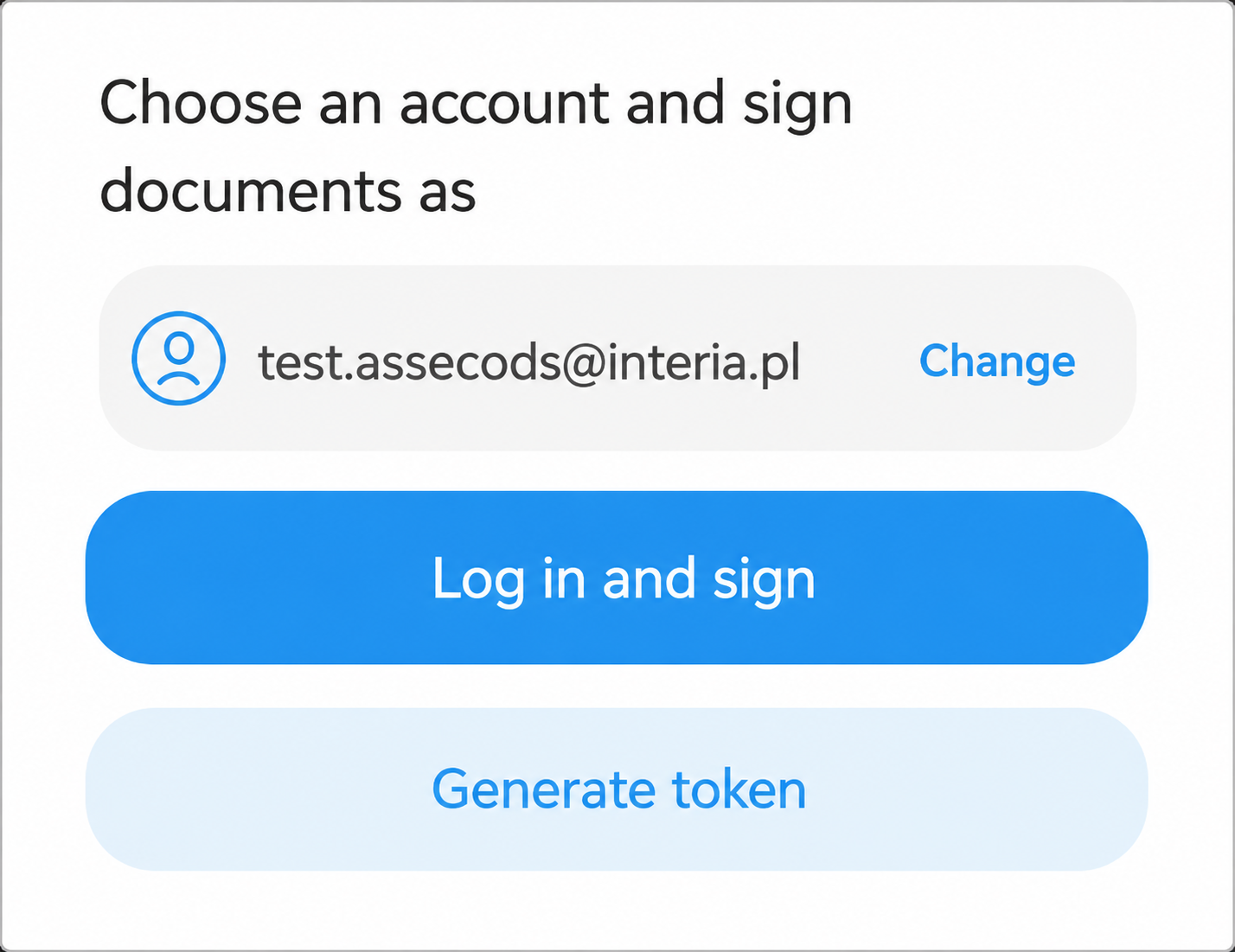
- Log in to the application. Follow the prompts of the system, how to place a qualified PDF signature.
- Upload the PDF file to the application.
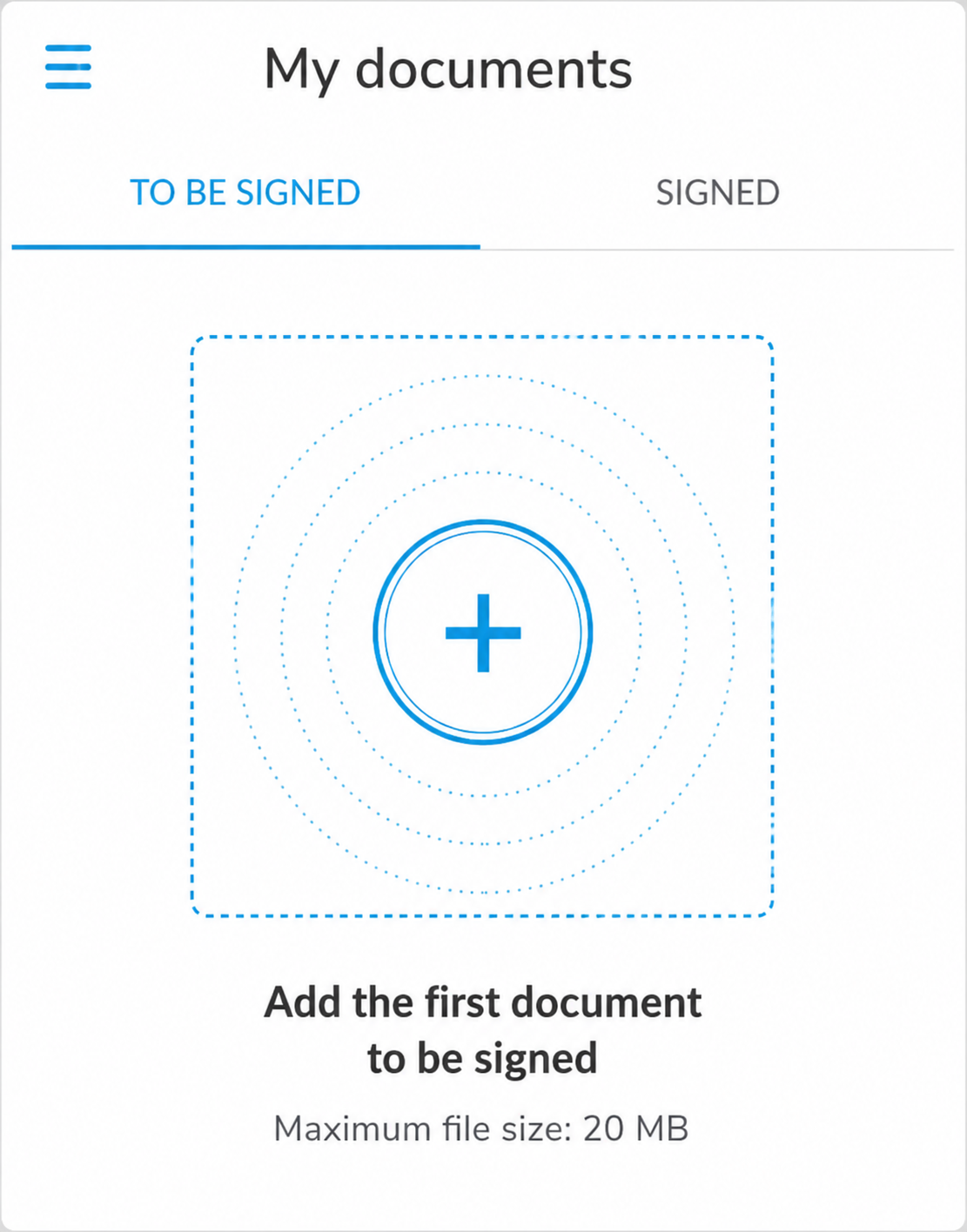
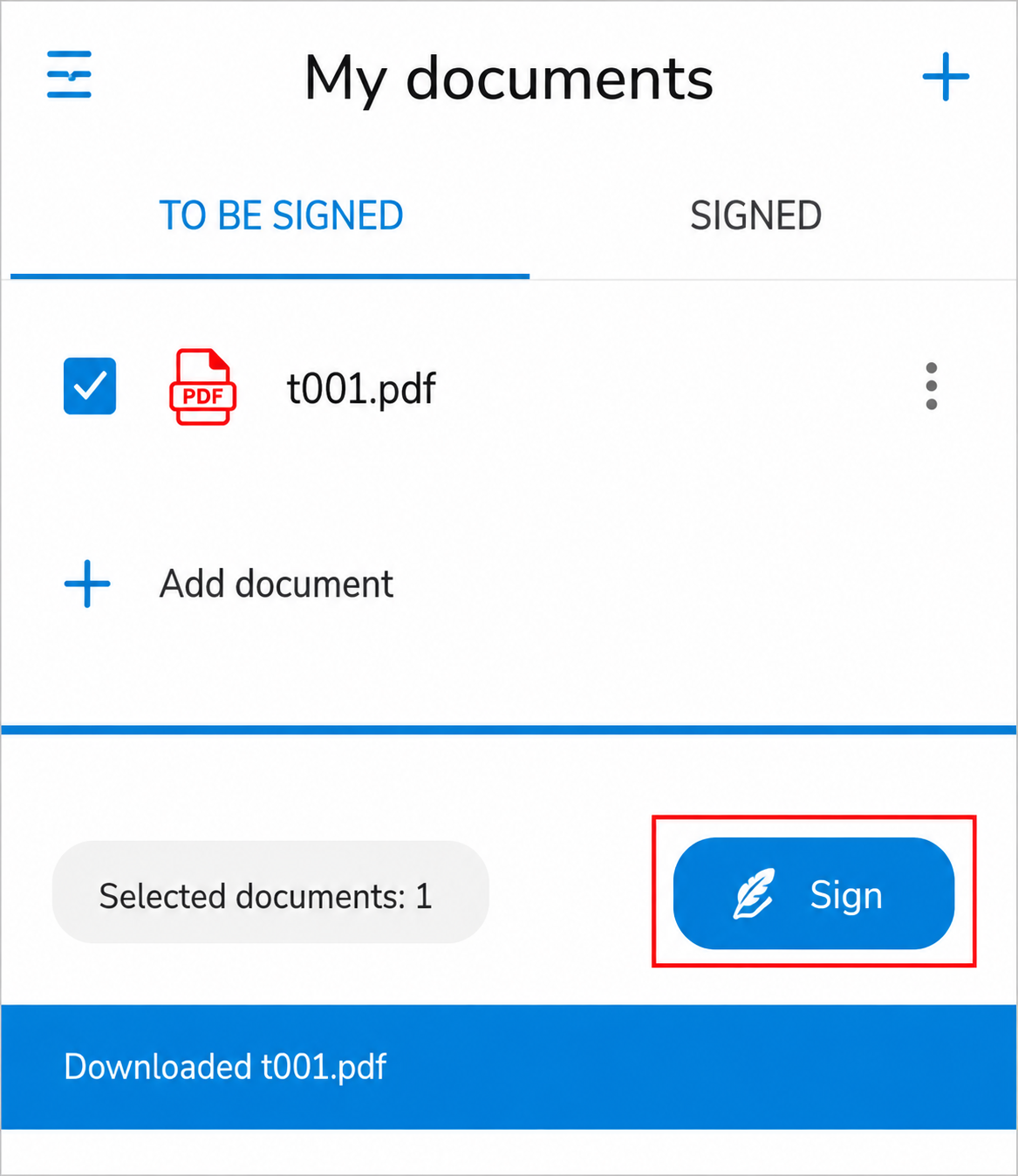
- Select the PDF document and click Sign.
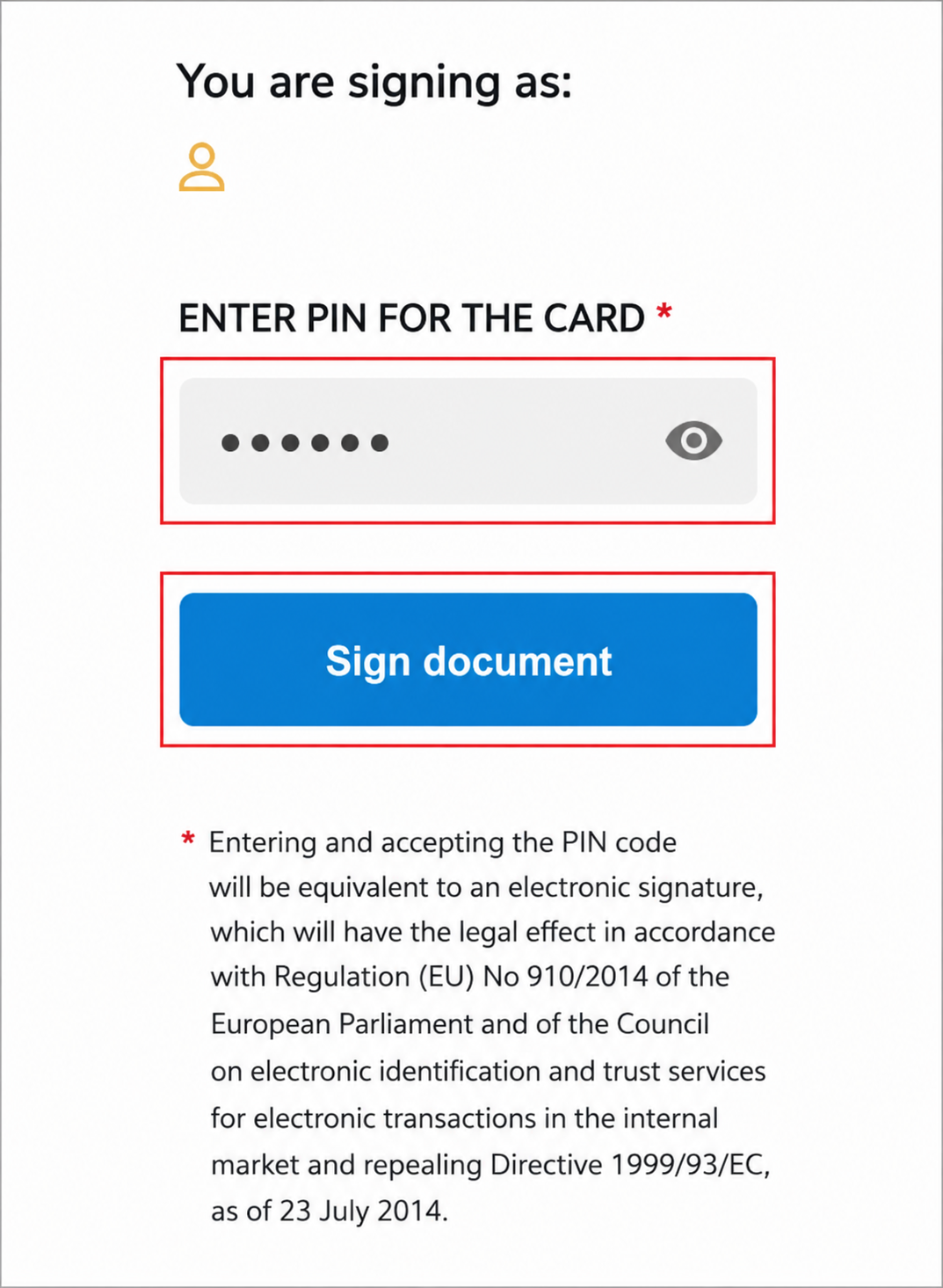
- To properly secure the PDF digital signature, please enter the PIN that confirms the legal validity of the signature applied to the PDF file.
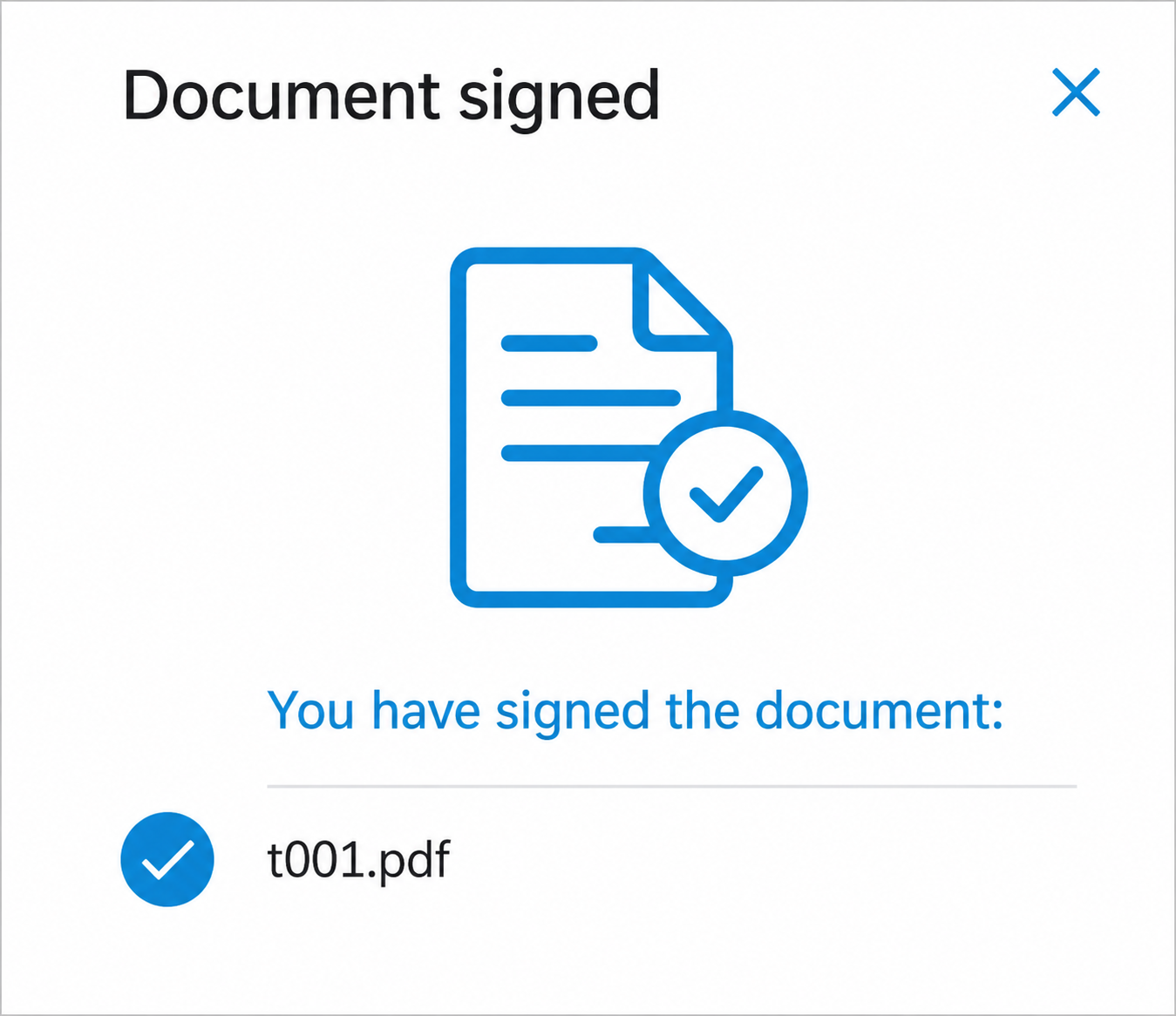
- Done! You can now share the correctly signed document or save it on your device. You may also proceed to sign additional files.
3. How to sign a PDF document in a web browser?
To sign documents, you can use the free, browser-based CertumSign application. It is available on any computer with an internet connection and does not require the installation of additional applications or drivers on your device. In the web application, you can use your SimplySign qualified signature.
To sign a document in CertumSign:
- Log in to your account at sign.certum.pl
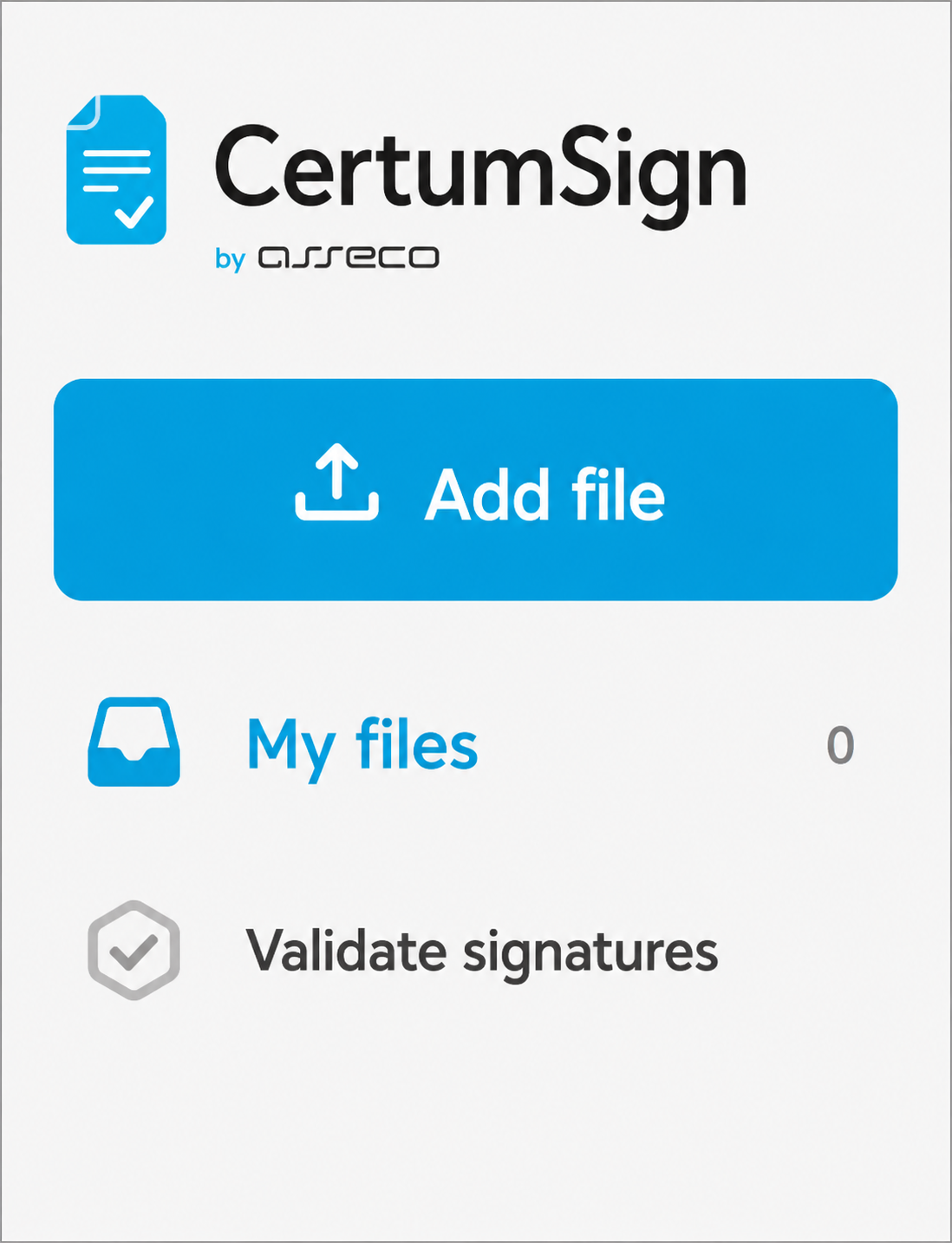
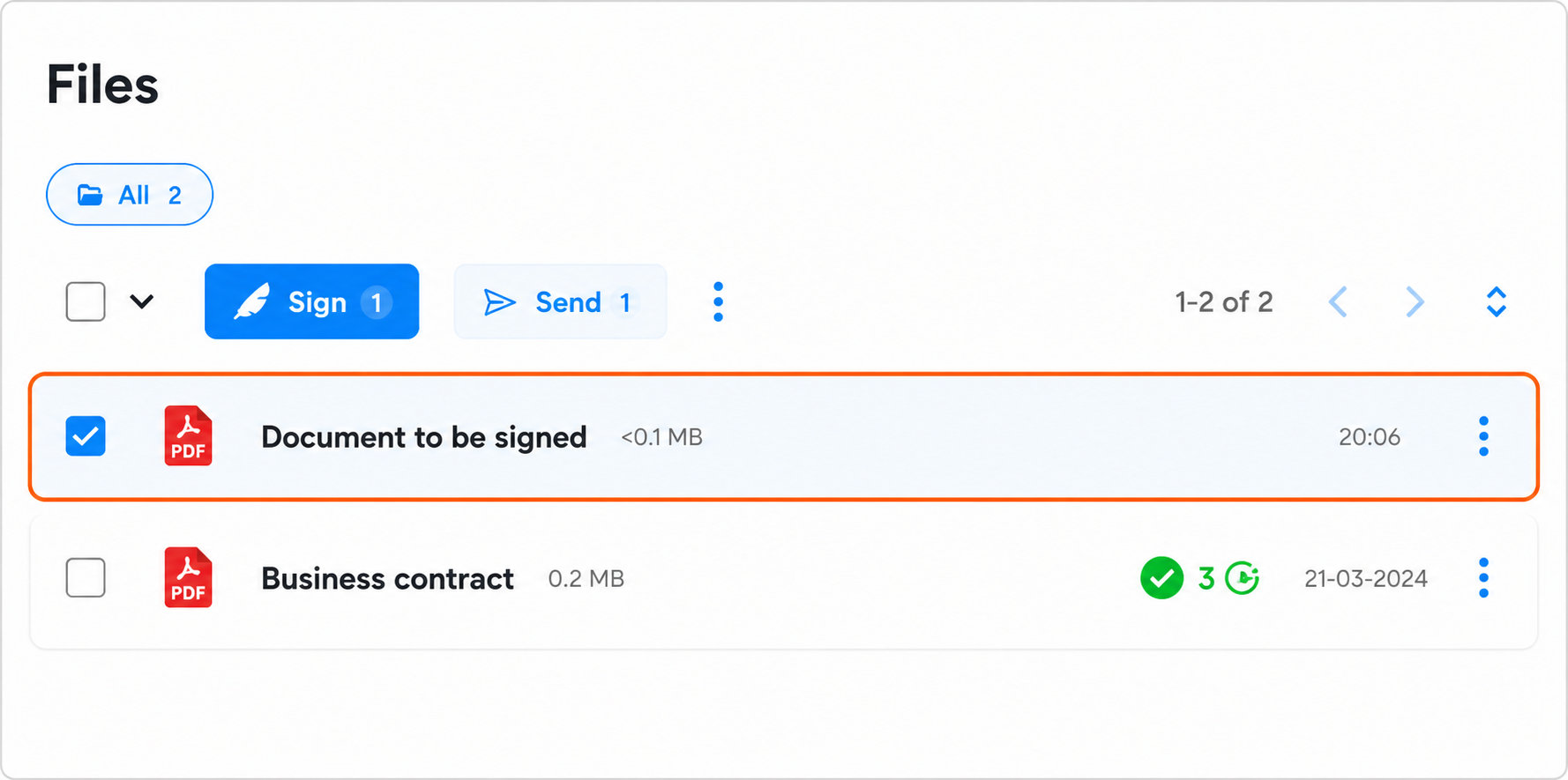
- Click the Add file button in the upper-left corner of the application screen.
- Select the document to be signed and click Sign. You will see a window with a preview of the document’s content.
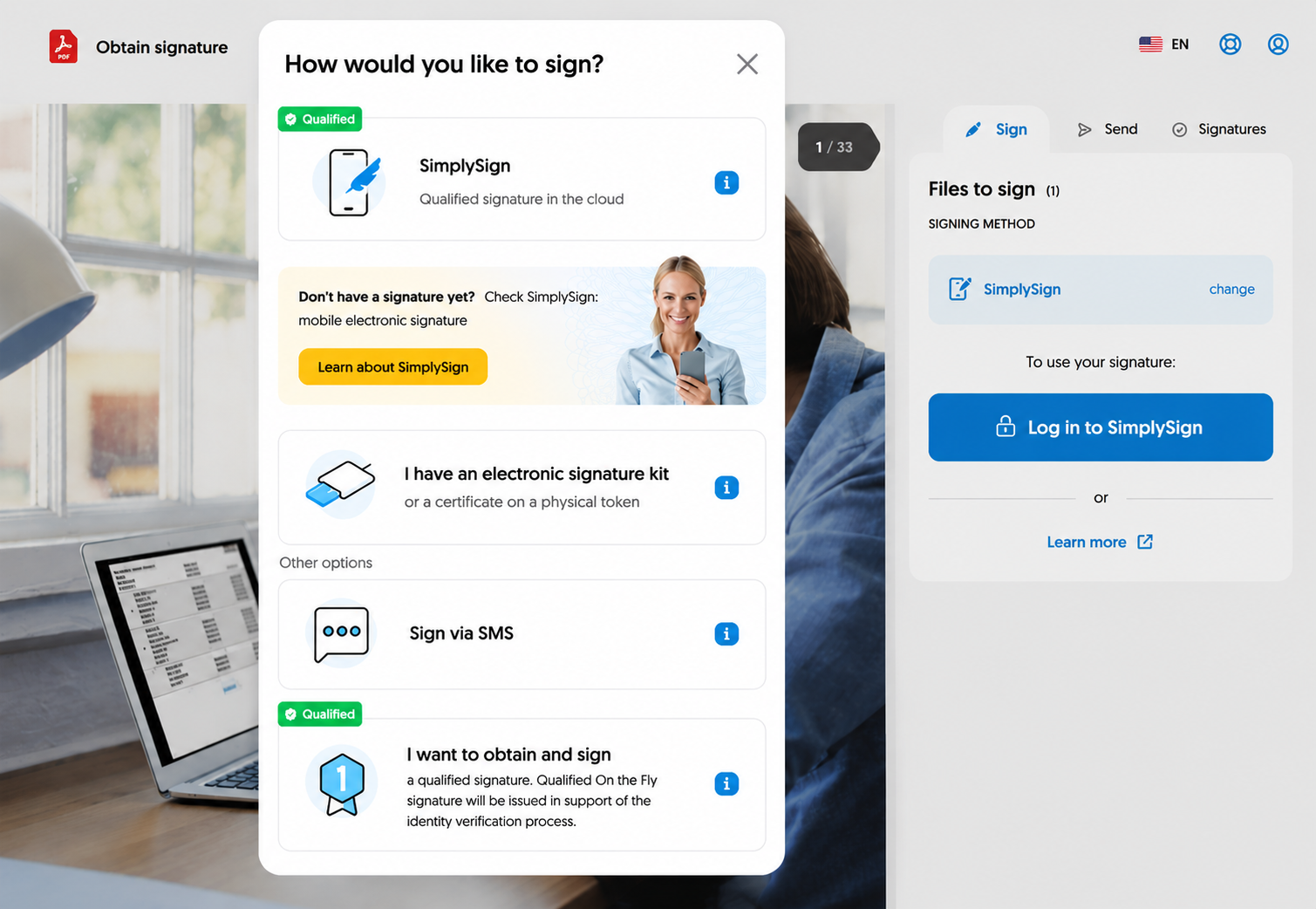
- In the Sign files section (on the right side of the screen), a panel with available e-signature methods is displayed, such as SimplySign. If you want to change the type of signature , click Change.
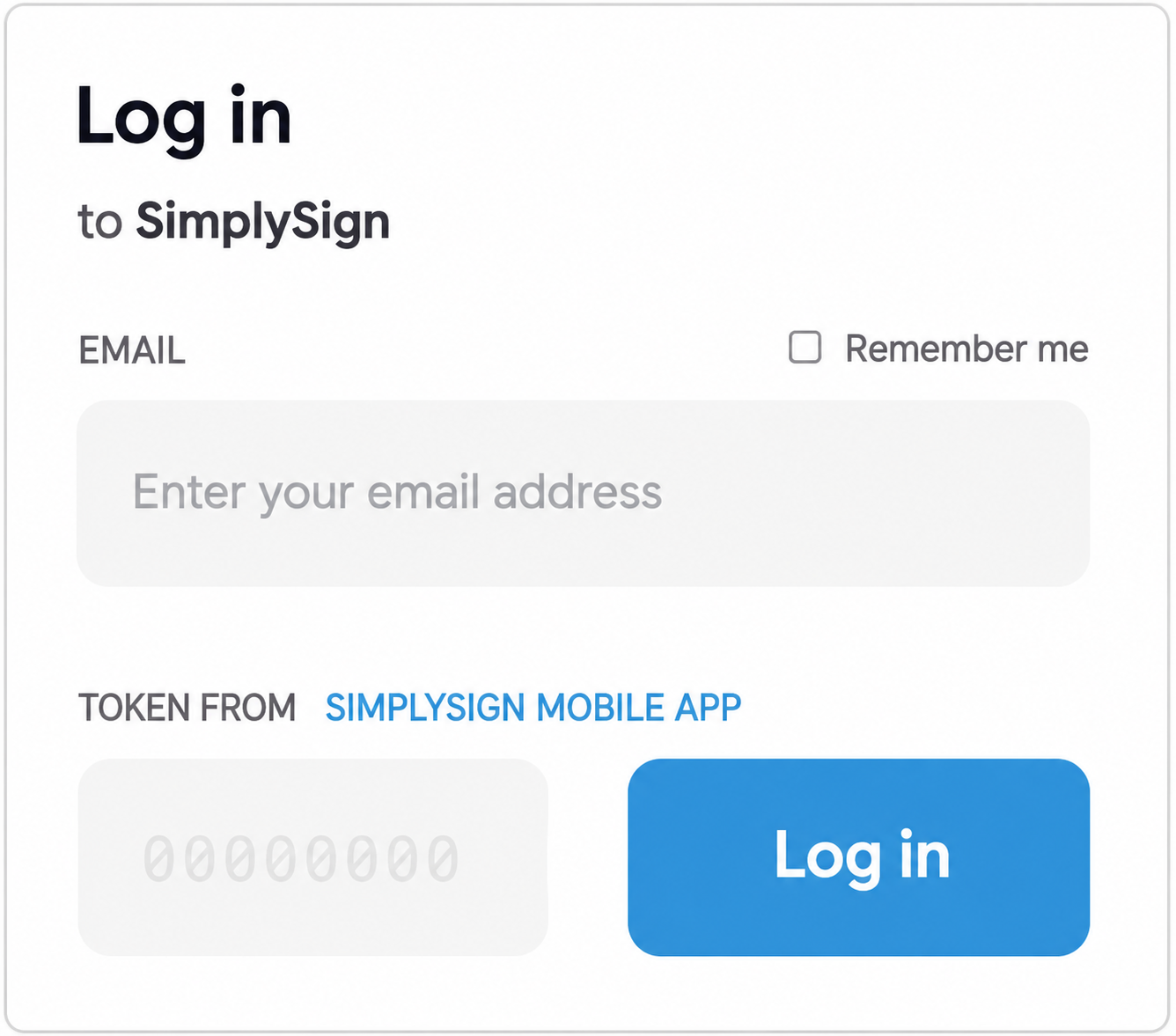
- Enter the email address associated with your SimplySign account and the token from the mobile application. If you are already logged in to the SimplySign service, this step will be skipped.
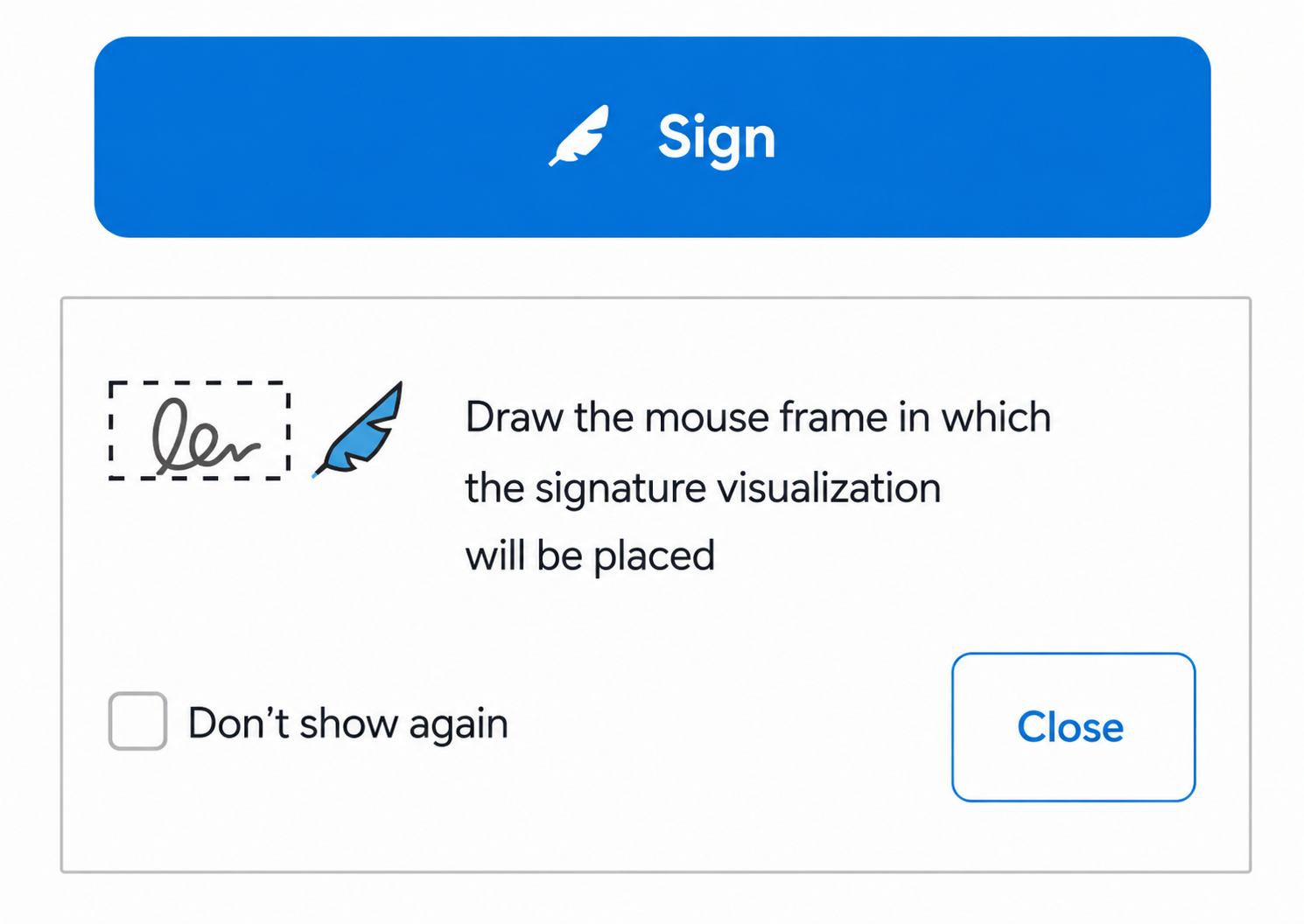
- The qualified certificate assigned to your account will be displayed on the screen. Click Sign and select the location for the signature visualization in the document.
- Enter the PIN code assigned during the certificate installation. If the code is correct, you will receive a confirmation that the file has been signed.
4. Certum Qualified Electronic Signature in Adobe Acrobat Reader
Signing a PDF document with a qualified signature is also possible in the Adobe Reader application. To properly configure your certificate with Adobe Reader software, be sure to visit our website with practical tips.
If you want to sign a document in Adobe:
- Open the PDF file you want to sign.
- Go to Tools > Certificates > Digitally Sign.
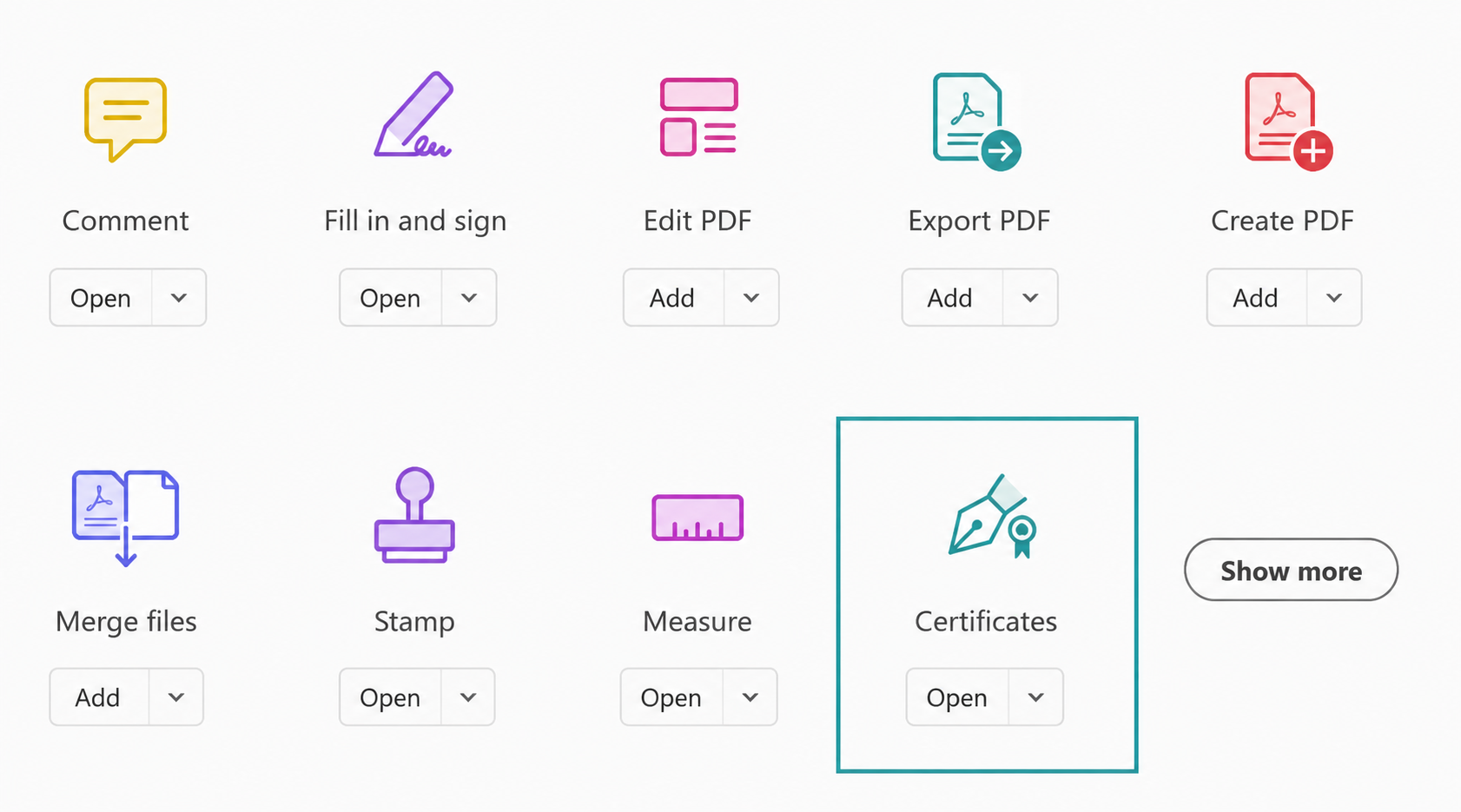
- Select the location and apply your PDF digital signature.
- Save the file and enter the PIN code for your qualified electronic signature.